Kucing APK is designed for Android, but you can still enjoy it on a Windows PC or laptop with the help of an Android emulator. Here is the step-by-step guide.
What You Need
- A Windows 7/8/10/11 PC or laptop with at least 4 GB of RAM
- A stable internet connection
- The Kucing APK file from this site’s download page
- An Android emulator: BlueStacks, LDPlayer, or NoxPlayer (all free)
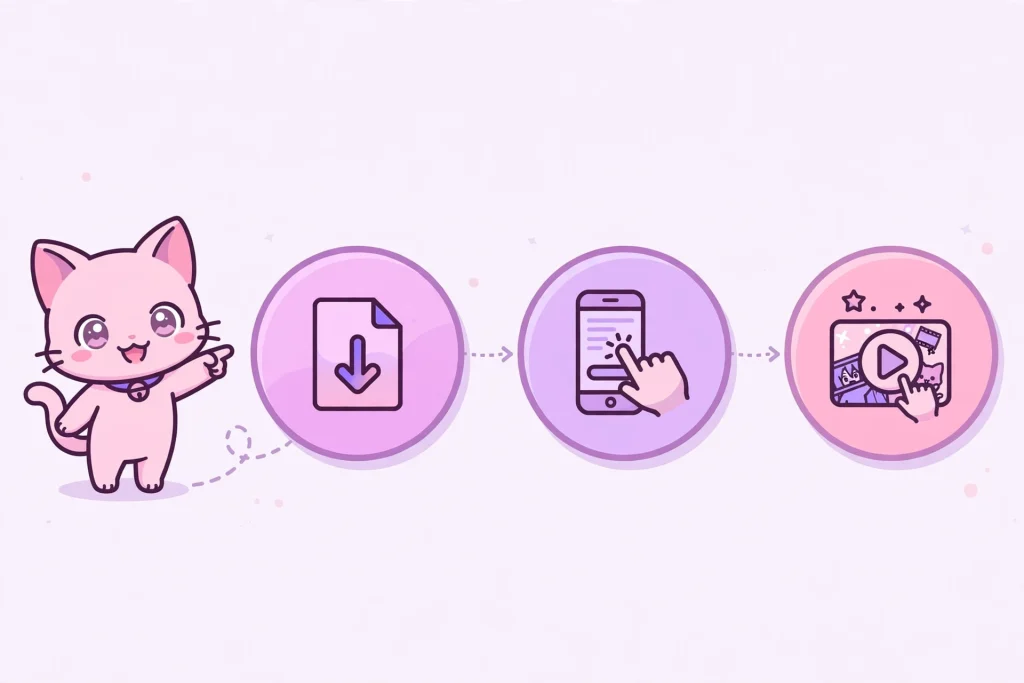
Step 1 — Install an Android Emulator
- Visit the official site of your chosen emulator (e.g. bluestacks.com) and download the installer.
- Run the installer and follow the setup until it finishes.
- Open the emulator — its home screen looks like an Android phone screen.
Step 2 — Install the Kucing APK File
- On this site, download the latest Kucing APK file to your PC.
- In the emulator, find the “Install APK” button (usually an icon in the sidebar).
- Select the APK file you just downloaded, then click Open.
- Wait for the installation to finish — the Kucing APK icon will appear on the emulator’s home screen.
Step 3 — Start Watching
- Click the Kucing APK icon in the emulator.
- The app opens just like on a phone — find your favorite anime and hit Play.
- For the best experience, enable fullscreen mode (usually the F11 key).
Tips
- Slow performance? Close other apps on your PC and increase the emulator’s RAM allocation in its settings.
- Subtitles too small? Enlarge the emulator window or use fullscreen mode.
- Updating the app: Download the new APK version and reinstall through the emulator — same steps as above.
PC Installation FAQ
Are emulators free? Yes — BlueStacks, LDPlayer, and NoxPlayer are all free for personal use.
Is it safe? Yes, as long as you download the emulator from its official site and the APK file from this site.
Does it work on Mac? Yes — BlueStacks and NoxPlayer are also available for macOS, with the same steps.